
Meet ScreenPlace
Meet ScreenPlace
Magical Window Management for Your Mac
Magical Window Management for Your Mac
Magical Window Management for Your Mac
ScreenPlace is the window manager that remembers exactly where every window should be on your Mac and automatically puts it back in its place.
Fully native app
Fully native app
macOS Sonoma (14) or later
macOS Sonoma (14) or later
One-time payment, no subscription
One-time payment, no subscription
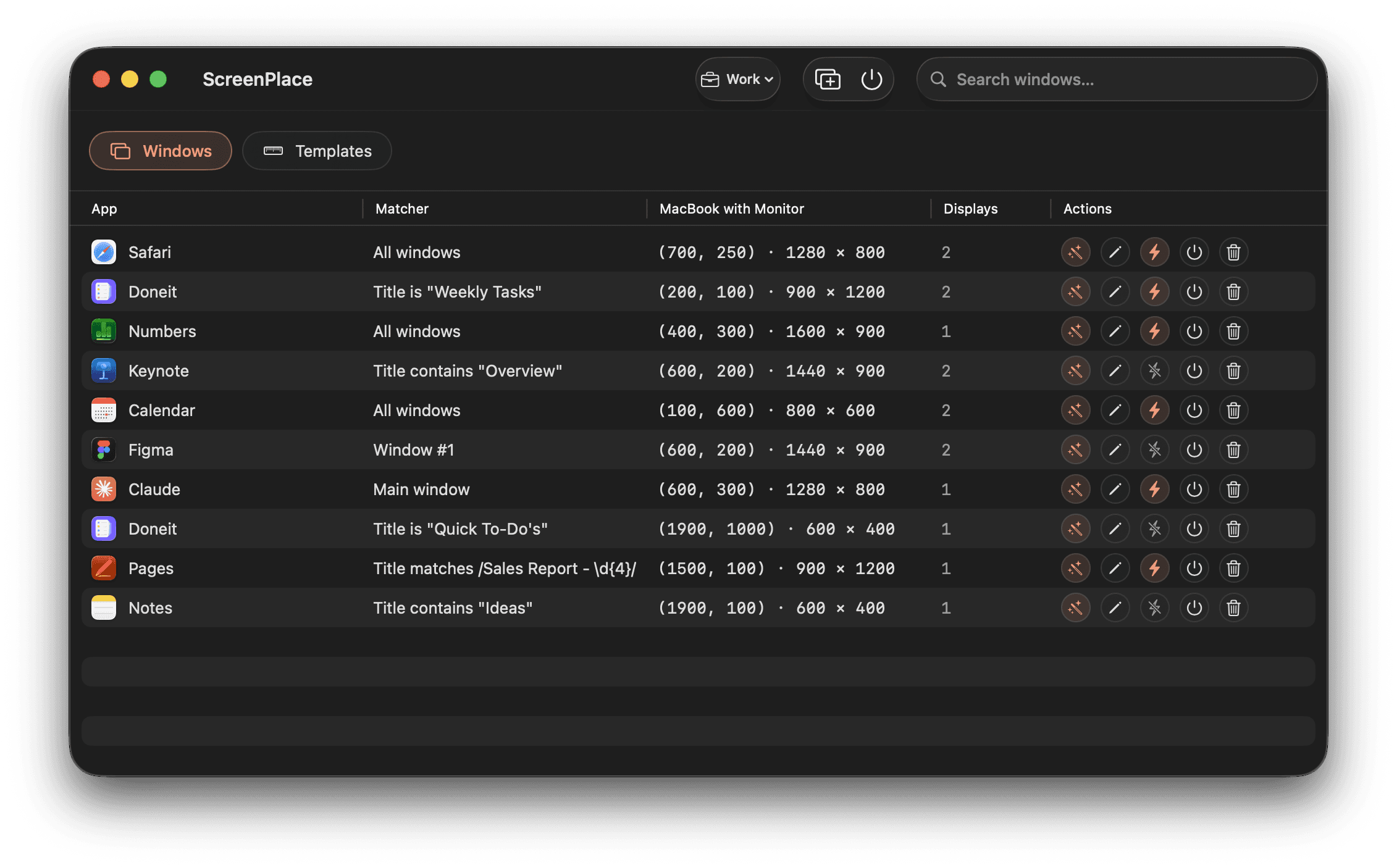
Unlimited Workspaces
Organize your different apps into separate workspaces and switch between them in seconds.
Unlimited Workspaces
Organize your different apps into separate workspaces and switch between them in seconds.
Multi-Display Support
Easily manage windows across all of your monitors with per-display configurations.
Multi-Display Support
Easily manage windows across all of your monitors with per-display configurations.
Auto-Apply
ScreenPlace can automatically apply window sizes and positions when you launch your apps.
Auto-Apply
ScreenPlace can automatically apply window sizes and positions when you launch your apps.
Global Shortcuts
Switch between workspaces or apply window sizes and positions with keyboard shortcuts without even opening the app.
Global Shortcuts
Switch between workspaces or apply window sizes and positions with keyboard shortcuts without even opening the app.
Reusable Templates
Save your frequently used window sizes and positions and apply them to any app instantly.
Reusable Templates
Save your frequently used window sizes and positions and apply them to any app instantly.
Endless Customization
Tailor the app down to the smallest detail so it suits the way you work.
Endless Customization
Tailor the app down to the smallest detail so it suits the way you work.
Feature-Packed
Powerful Features to Transform How You Manage Windows on Your Mac
Powerful Features to Transform How You Manage Windows on Your Mac
Powerful Features to Transform How You Manage Windows on Your Mac
Floating Companion for Every Window You Use
Badge is the defining experience of ScreenPlace. It stays close to your windows, letting you snap them back into place with a single click.
Apply existing layout
Apply existing layout
Save the current size and position
Save the current size and position
Hide automatically when size and position match
Hide automatically when size and position match

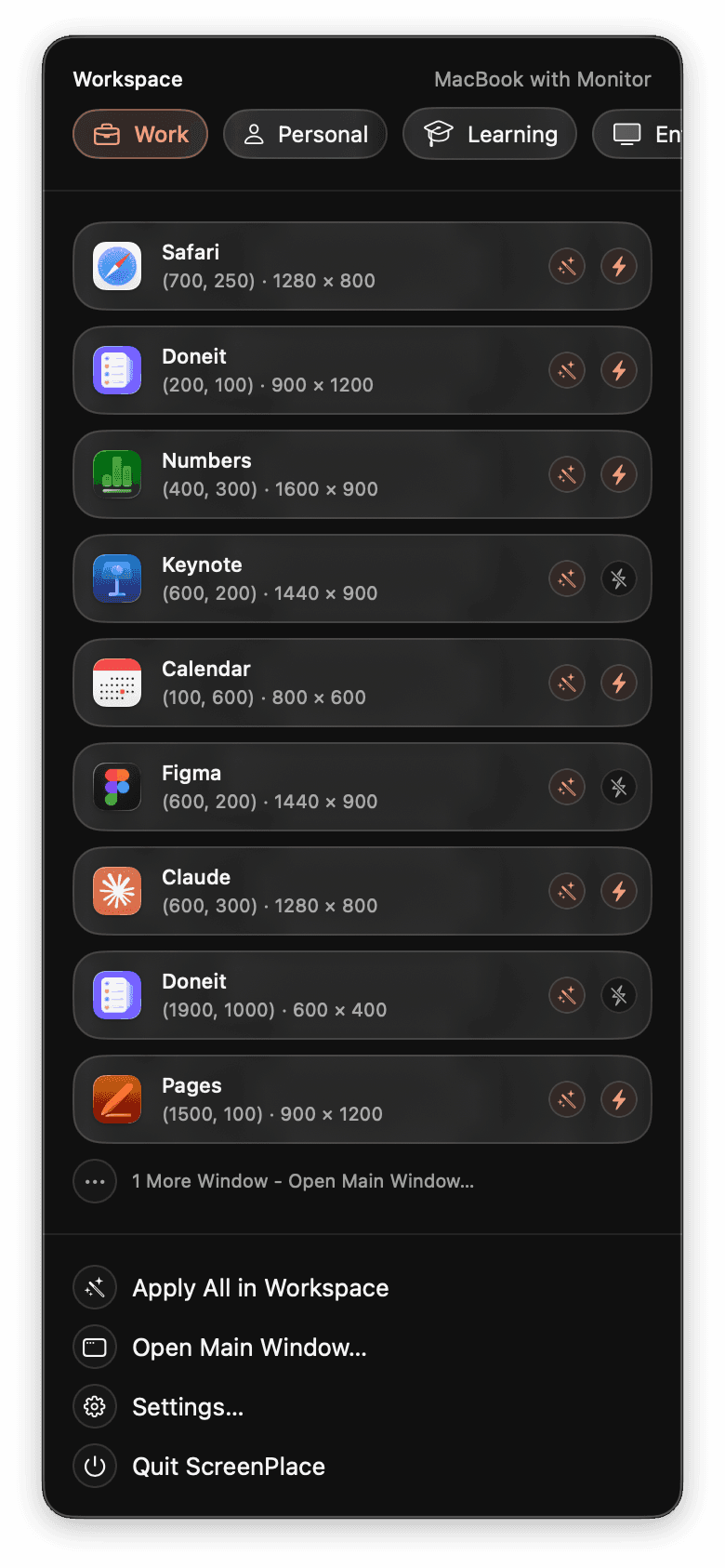
Separate Workspace for Everything You Do
Group your windows by what you are working on and switch between workspaces right from the menu bar or using a keyboard shortcut.
Organize apps by workspace
Organize apps by workspace
Switch between workspaces in seconds
Switch between workspaces in seconds
Apply layouts automatically when switching
Apply layouts automatically when switching
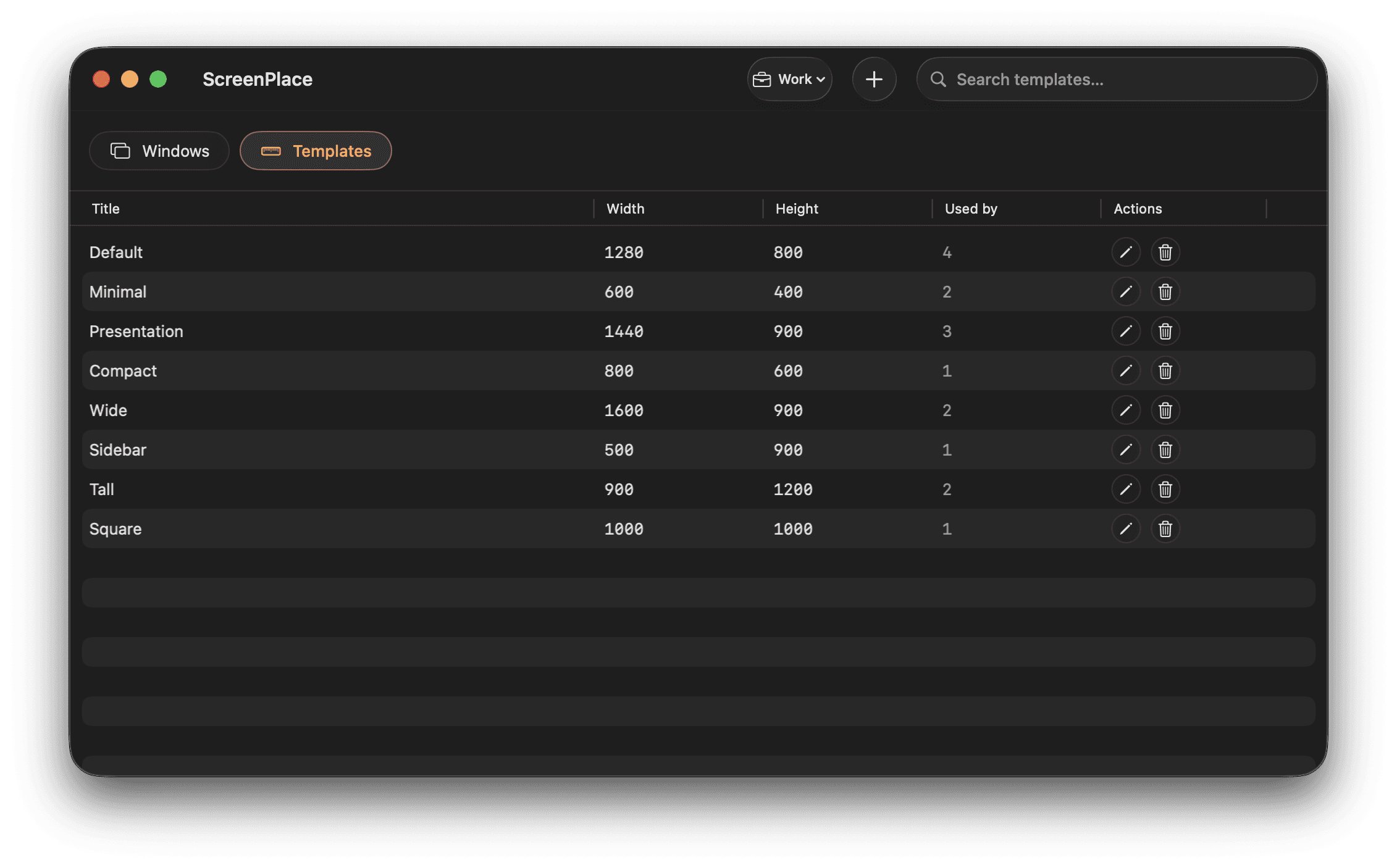
Reusable Templates for Every Window Size and Position You Need
Set the exact size and position you want, save it as a template, and apply it to any window in just a few clicks.
Set precise X, Y, width, and height values
Set precise X, Y, width, and height values
Reuse templates across apps and workspaces
Reuse templates across apps and workspaces
Apply the same size and position to any window
Apply the same size and position to any window
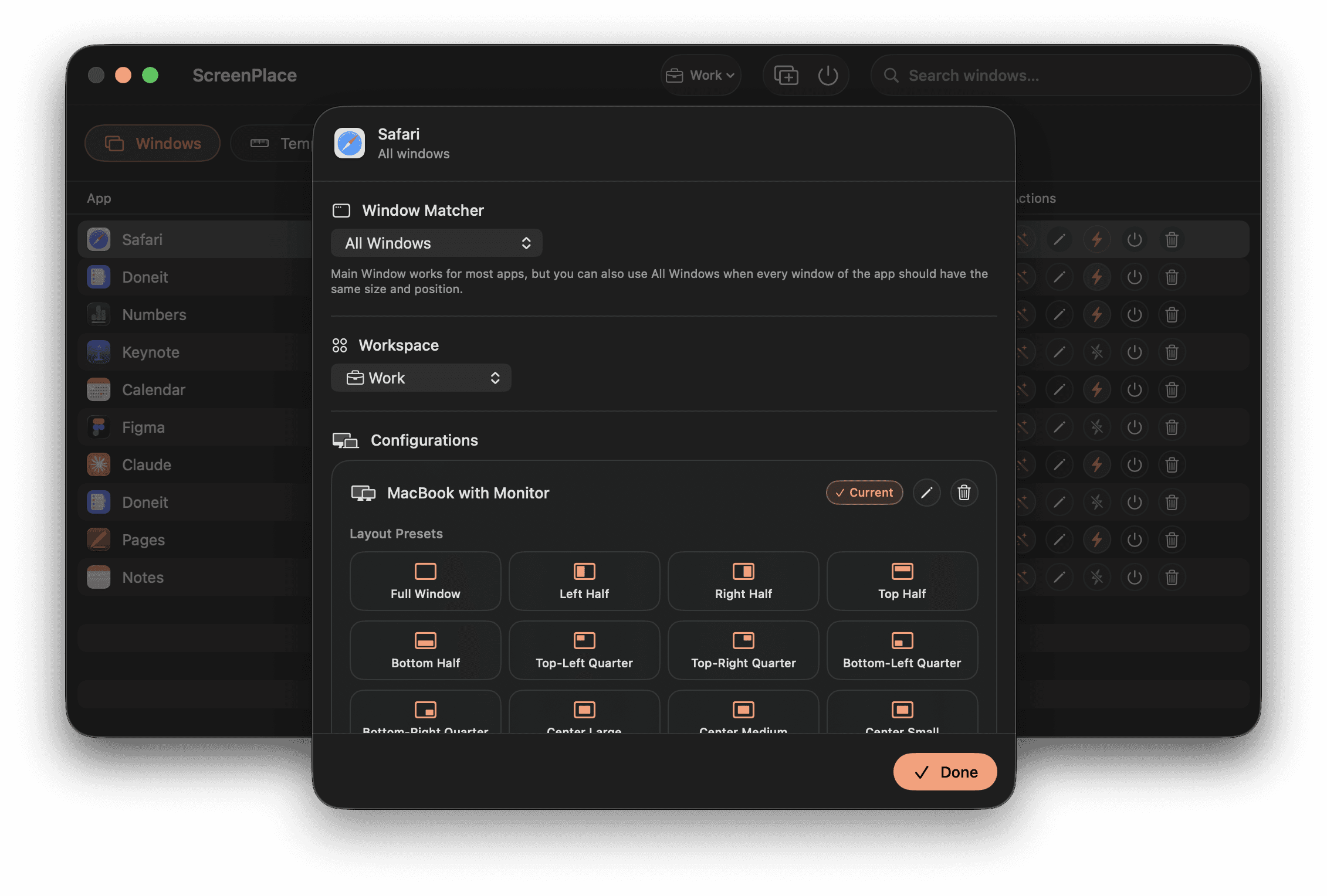
Tailored Window Layouts for All of Your Displays
ScreenPlace lets you save a separate layout for every display setup you use and applies the right one the moment you connect.
Add a unique layout for each display configuration
Add a unique layout for each display configuration
Apply layouts automatically when display setup changes
Apply layouts automatically when display setup changes
Match windows by title, index, or pattern
Match windows by title, index, or pattern
Built for the Way You Work
Everything You Need to Keep Your Windows Organized
Everything You Need to Keep Your Windows Organized
Everything You Need to Keep Your Windows Organized
Up and Running Instantly
Grant Device Control and Data Access, add windows, and you are done.
Up and Running Instantly
Grant Device Control and Data Access, add windows, and you are done.
Apply Layouts from Keyboard
Snap windows into place from anywhere on your Mac.
Apply Layouts from Keyboard
Snap windows into place from anywhere on your Mac.
E
E
C
C
A
A
L
L
P
P
N
N
E
E
E
E
R
R
C
C
S
S
⇧
⇧
⌃
⌃
⌥
⌥
⌘
⌘
Space
Space
Automatic Window Placement
Your windows are in place right from the start.
Automatic Window Placement
Your windows are in place right from the start.
Make the App Truly Yours
Adjust various settings in ScreenPlace to suit your workflow.
Make the App Truly Yours
Adjust various settings in ScreenPlace to suit your workflow.
Use Cases
Designed to Fit Right Into Your Workflow
Designed to Fit Right Into Your Workflow
Designed to Fit Right Into Your Workflow


Our Pricing
Pay Once and Own ScreenPlace Forever
Pay Once and Own ScreenPlace Forever
Pay Once and Own ScreenPlace Forever
Use ScreenPlace completely for free and upgrade to ScreenPlace Ultra for an enhanced experience.
Free
$0
Use the core features of ScreenPlace completely for free.
Unlimited Windows
Unlimited Windows
1 Workspace
1 Workspace
Multi-Display Support
Multi-Display Support
Auto-Apply
Auto-Apply
Global Shortcuts
Global Shortcuts
Reusable Templates
Reusable Templates
Ultra
$29
Take the way you manage windows on your Mac to the next level.
Unlimited Windows
Unlimited Workspaces
Multi-Display Support
Auto-Apply
Global Shortcuts
Reusable Templates
Ultra
$29
Take the way you manage windows on your Mac to the next level.
Unlimited Windows
Unlimited Workspaces
Multi-Display Support
Auto-Apply
Global Shortcuts
Reusable Templates
Ultra
$29
Take the way you manage windows on your Mac to the next level.
Unlimited Windows
Unlimited Workspaces
Multi-Display Support
Auto-Apply
Global Shortcuts
Reusable Templates
Find Answers
Frequently Asked Questions with Answers
Frequently Asked Questions with Answers
Frequently Asked Questions with Answers
We have provided answers to some of the most frequently asked questions about ScreenPlace below.
What are the system requirements?
ScreenPlace requires macOS Sonoma (14) or later.
What are the system requirements?
ScreenPlace requires macOS Sonoma (14) or later.
What are the system requirements?
ScreenPlace requires macOS Sonoma (14) or later.
What languages is ScreenPlace available in?
ScreenPlace is currently available in English and German.
What languages is ScreenPlace available in?
ScreenPlace is currently available in English and German.
What languages is ScreenPlace available in?
ScreenPlace is currently available in English and German.
Can I try ScreenPlace for free?
Yes, you can use the core features of ScreenPlace completely for free. You can add windows and apply sizes and positions for one display configuration.
Can I try ScreenPlace for free?
Yes, you can use the core features of ScreenPlace completely for free. You can add windows and apply sizes and positions for one display configuration.
Can I try ScreenPlace for free?
Yes, you can use the core features of ScreenPlace completely for free. You can add windows and apply sizes and positions for one display configuration.
Is this a subscription?
No, ScreenPlace Ultra is a one-time purchase. You pay once and enjoy all the ultra features with future updates included forever.
Is this a subscription?
No, ScreenPlace Ultra is a one-time purchase. You pay once and enjoy all the ultra features with future updates included forever.
Is this a subscription?
No, ScreenPlace Ultra is a one-time purchase. You pay once and enjoy all the ultra features with future updates included forever.
Can I use ScreenPlace Ultra on multiple Macs?
Yes, ScreenPlace Ultra is available for 1, 5, or 10 Macs.
Can I use ScreenPlace Ultra on multiple Macs?
Yes, ScreenPlace Ultra is available for 1, 5, or 10 Macs.
Can I use ScreenPlace Ultra on multiple Macs?
Yes, ScreenPlace Ultra is available for 1, 5, or 10 Macs.
Are future updates included?
Yes, you will receive all of the future updates at no additional cost.
Are future updates included?
Yes, you will receive all of the future updates at no additional cost.
Are future updates included?
Yes, you will receive all of the future updates at no additional cost.
How can I activate my license key?
You can activate your license key by clicking on the License button in the settings of the app in the About section.
How can I activate my license key?
You can activate your license key by clicking on the License button in the settings of the app in the About section.
How can I activate my license key?
You can activate your license key by clicking on the License button in the settings of the app in the About section.
What is your refund policy?
We offer a 14-day refund policy and you can request a refund by sending us an email at info@designtech.so.
What is your refund policy?
We offer a 14-day refund policy and you can request a refund by sending us an email at info@designtech.so.
What is your refund policy?
We offer a 14-day refund policy and you can request a refund by sending us an email at info@designtech.so.
Supercharge Your Workflow
Effortlessly Put Every Window in Its Place
Supercharge Your Workflow
Effortlessly Put Every Window in Its Place
Supercharge Your Workflow